How do you roll in Planet RNG?
Press E or click the ROLL - FREE button in the bottom-left corner. The official key art shows the E prompt over the button, and the button itself is documented in gameplay footage.
Controls
Every control we have seen on screen, key and button, plus the two toggles that run the game for you.
Updated
Planet RNG is built as a near-one-hand game. The only keyboard control we have verified is the roll key: the official key art shows a key cap reading 'E' in front of the button text 'ROLL!', and E is the standard Roblox interaction key this game leans on for rolling. Everything else — destroying, buying, equipping — is click-driven, and the interface narrates itself with button labels.
| Action | Control | Notes |
|---|---|---|
| Roll | E key or ROLL - FREE button | Button is bottom-left; both trigger a scan |
| Auto roll | AUTO ROLL toggle | Runs scans hands-free; state reads ON/OFF |
| Destroy / fire | Click, or AUTO FIRE toggle | AUTO FIRE: OFF/ON states both observed |
| Open menus | Right-side menu buttons | Eleven at launch; thirteen in later recordings |
| Redeem codes | Settings → code box | Settings is part of the right-side menu |
| Toggle backdrop | FOG ON (constellation panel) | Dims the space backdrop for readability |
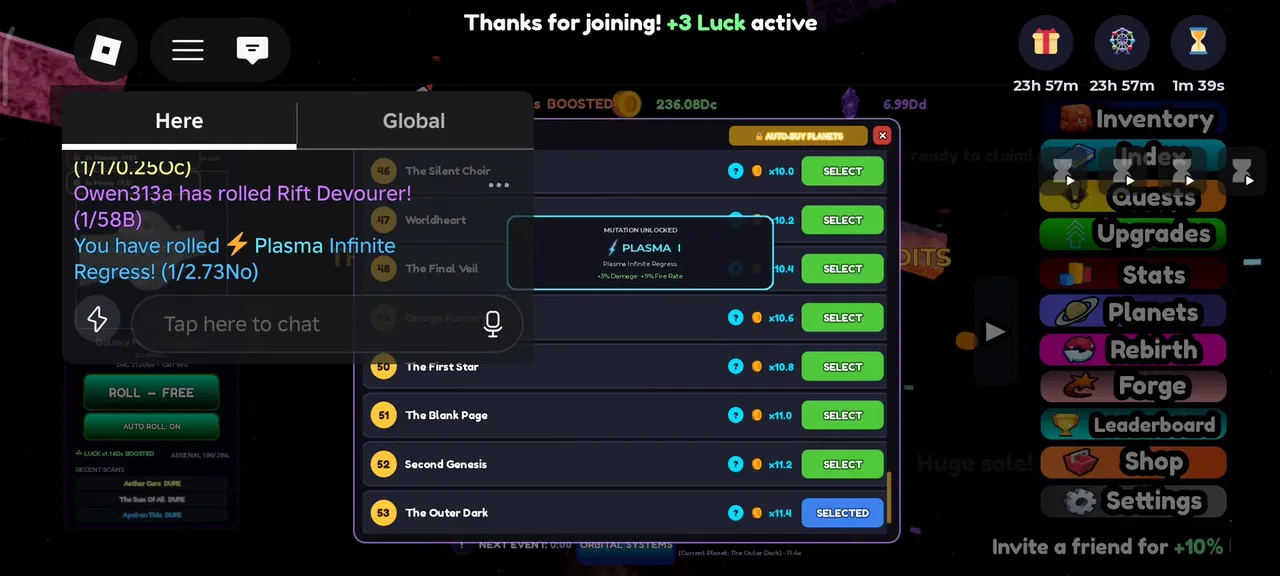
The right edge is a stack of menu buttons — the map of the whole game. The 29 August recordings show eleven of them: Inventory, Index, Quests, Upgrades, Stats, Planets, Rebirth, Forge, Leaderboard, Shop, Settings (with an 'Invite a friend for +10%' button beneath). By the 7 September recordings the stack read thirteen — a Worlds row and an Ascend row joined between Rebirth and Forge, matching the official copy's 'explore worlds and ascend to unlock your potential'. If a guide tells you to find something, it lives behind one of these labels; where your game shows one more or fewer row than a screenshot here, the named rows are unchanged.
Two of them stay thin in our footage: Forge (the menu row exists but no session has shown its panel open) and Leaderboard (tabs exist — Here and Global — but no standings have been readable yet). They are listed for completeness, not for guides.
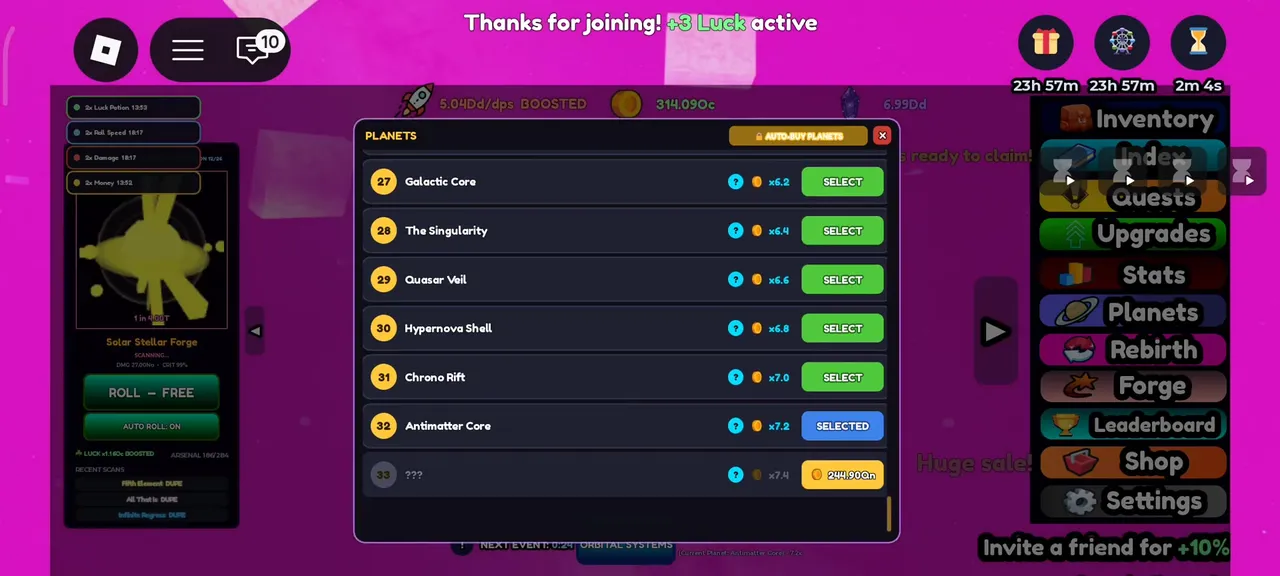
AUTO ROLL and AUTO FIRE are the difference between playing an RNG game and watching one. With both on, the game keeps rolling for weapons and keeps destroying with whatever is equipped; your inputs shrink to the interesting parts — spending credits, rebuilding the loadout, deciding when to pop potions.
Both toggles persist in the session and both are free. If you are testing a new weapon or want to watch a planet's damage numbers tick, drop AUTO FIRE back to OFF — the toggle is one click.
The top of the screen carries the numbers the toggles are feeding: the DPS readout (we filmed '278.03Qad/dps' with a BOOSTED tag), the compact 'DMG • CRIT' line ('DMG 27.00No • CRIT 99%' in one capture), and the luck indicator that switches to 'LUCK x1.71x BOOSTED' while buffs are active. Bottom-centre handles targets and destruction; bottom-left holds the event strip.
Some buttons exist for everyone but only work with a matching pass. The clearest example is AUTO-BUY PLANETS at the top of the Planets panel — it renders with a lock icon in our footage, and the store sells the matching pass at 80 R$. Auto Rebirth works the same way: the panel shows 'AUTO REBIRTH @ 99' as a toggle, and the store sells Auto Rebirth at 99 R$. Neither blocks progress; they remove repetition.
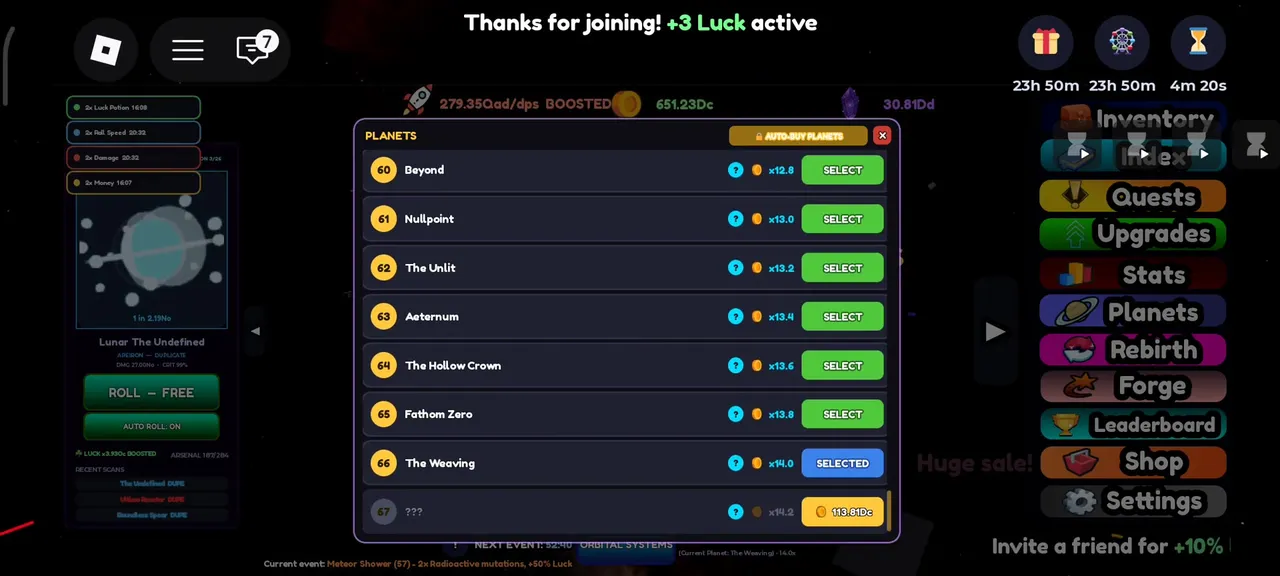
Roblox lists Planet RNG as supporting mobile, and nothing in the interface depends on a mouse hover — the roll button, the toggles and the menu are all tap targets. We have not filmed a phone session, so this page stops at 'the layout looks tap-ready' rather than claiming specifics it cannot show.
FAQ
Press E or click the ROLL - FREE button in the bottom-left corner. The official key art shows the E prompt over the button, and the button itself is documented in gameplay footage.
The AUTO ROLL toggle sits directly beside the roll button and flips between ON and OFF. While it is on, scans run on the game's own timer without any input.
In Settings — the bottom button of the right-side menu. The code box lives inside, and the redeem confirm happens in-panel. Finish the tutorial first if Settings looks locked.